How Do I Reset My Industrial PC or Mini PC?
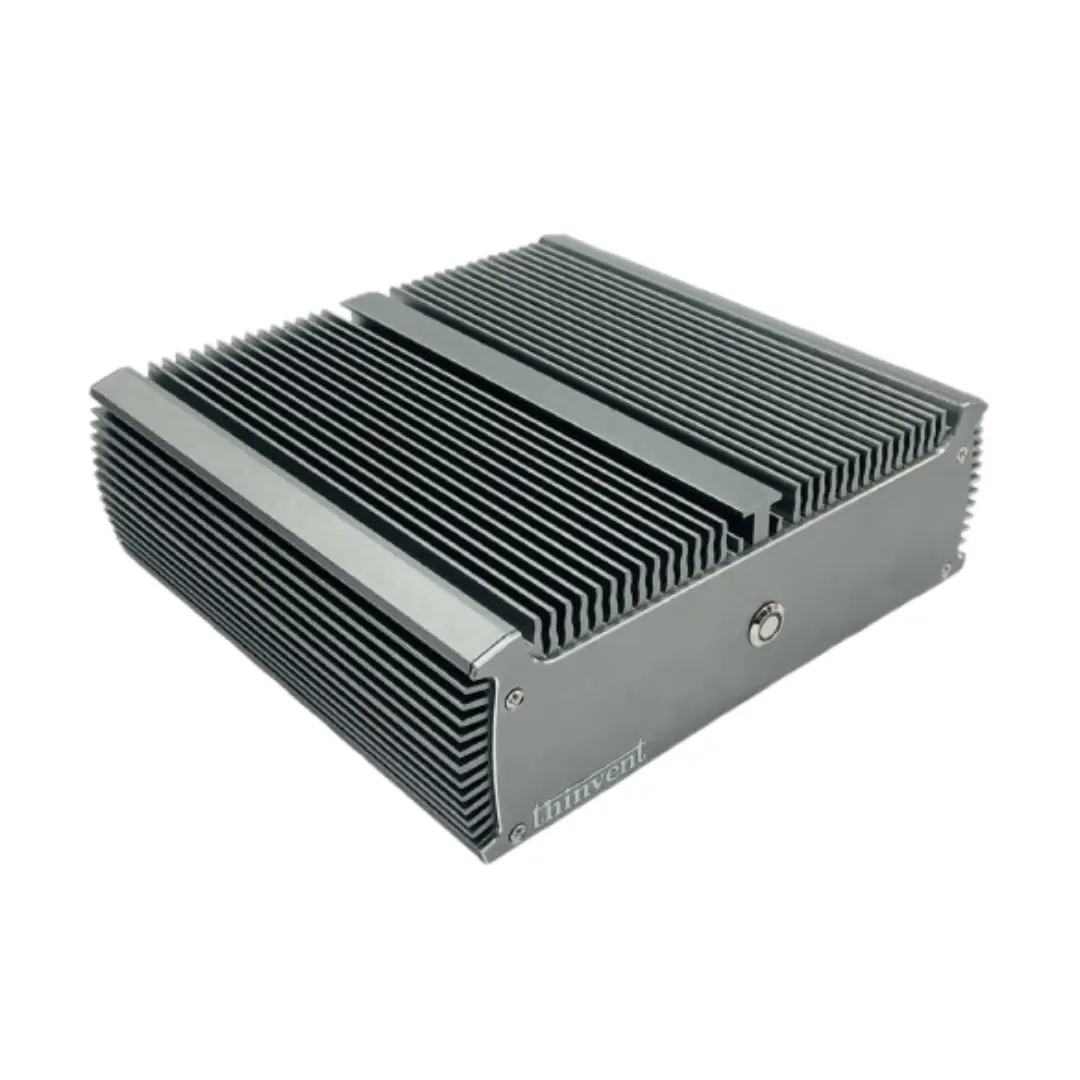
"How do I reset" is one of the most common questions asked about compact and industrial computers. The right answer depends on what you actually want to reset: a frozen system that will not respond, a forgotten operating system, or the hardware itself after an unexpected shutdown. On Thinvent industrial PCs and mini PCs, the reset process is straightforward because the hardware is designed for unattended, always-on operation in factories, kiosks, and retail counters.
Step 1: A Soft Reset (System Is Frozen)
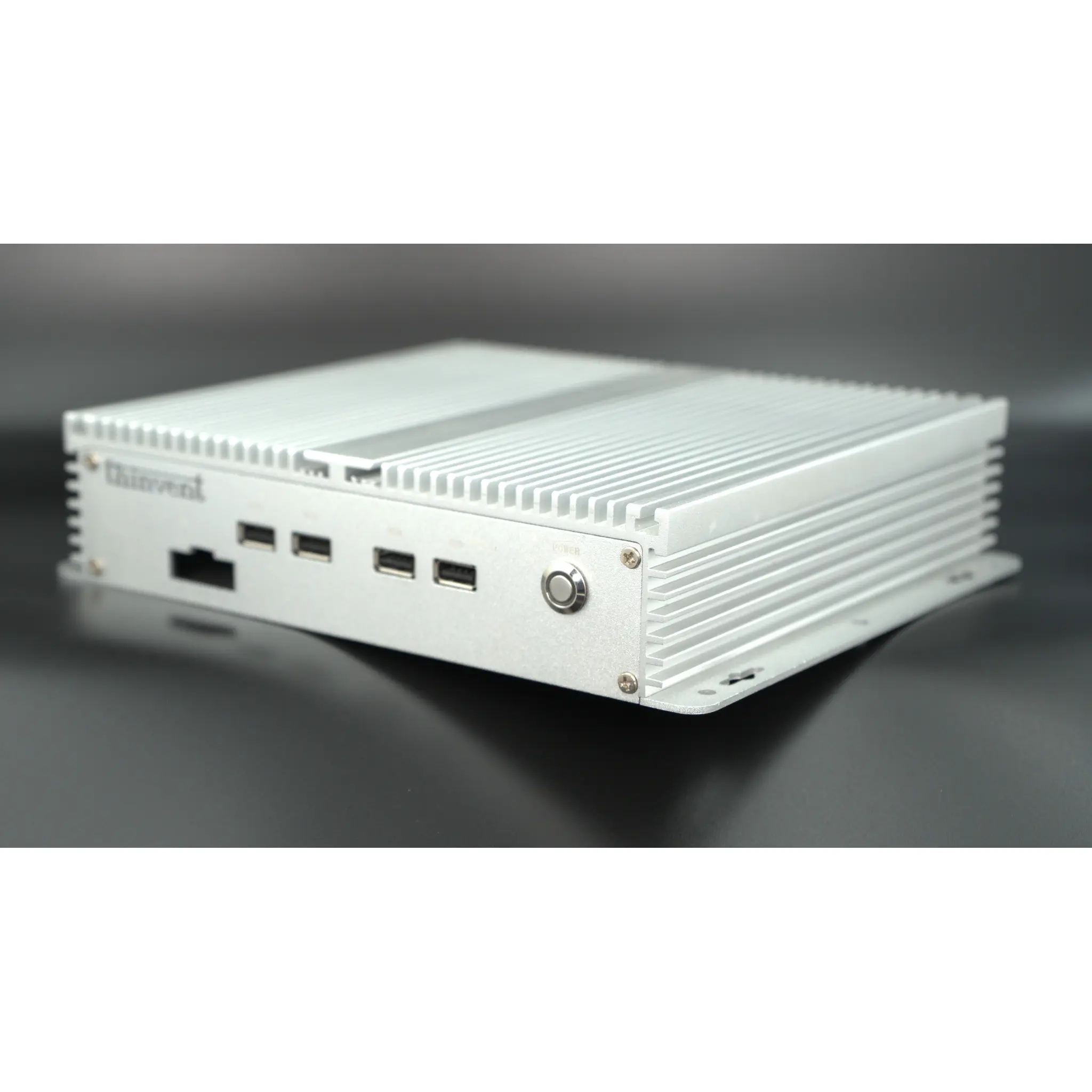
If the screen is frozen but the machine is still powered, first try a soft reset. Hold the power button for about 5 to 10 seconds until the system switches off, wait 10 seconds, then press the power button once to boot again. This forces the power supply to cycle without touching the storage, so your data on the SSD stays intact. On Thinvent IPC3 systems running Intel® Core™ i3-1215U processors with Windows 11 Pro, the system typically returns to the desktop within 20 to 30 seconds.
Step 2: A Hardware Reset (No Response At All)
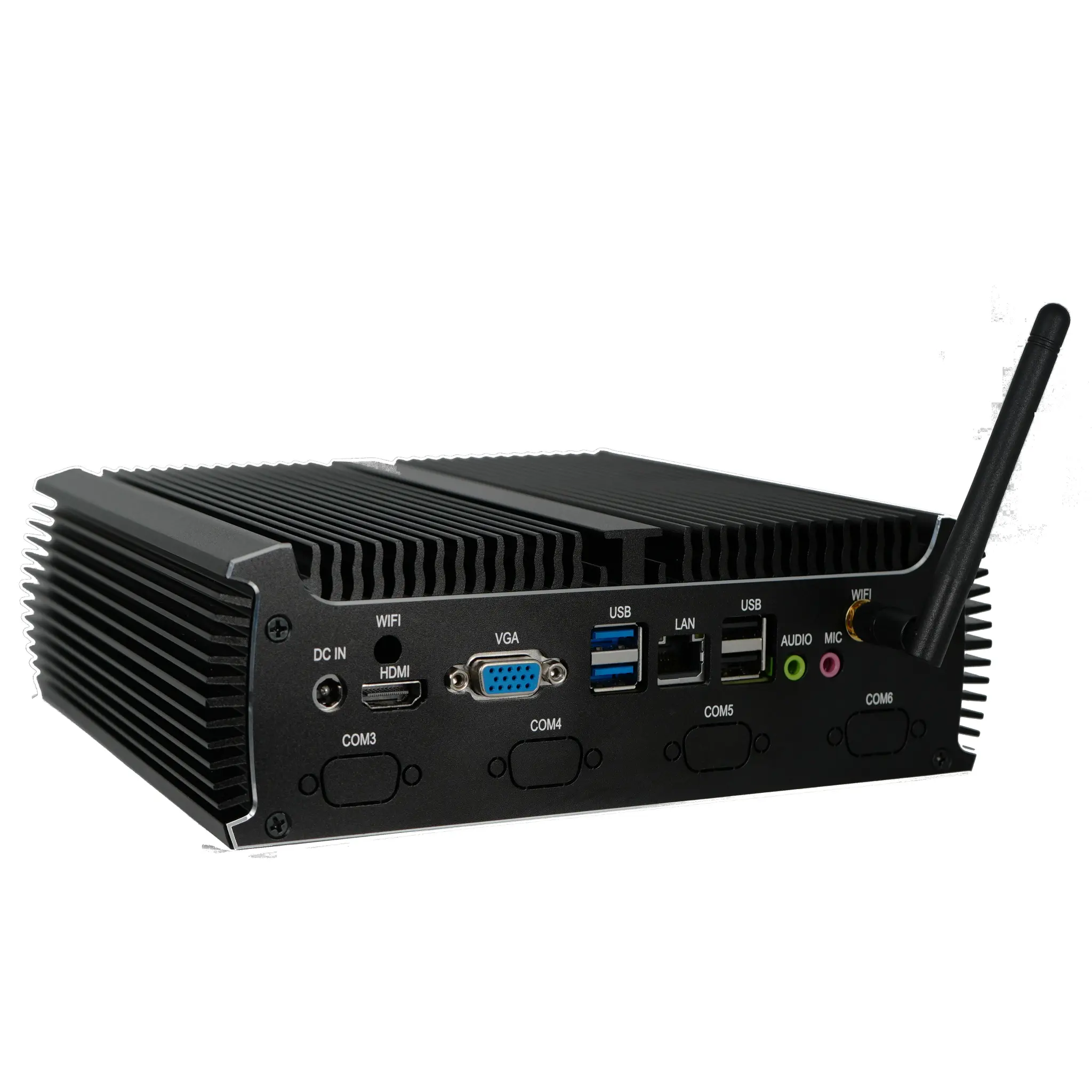
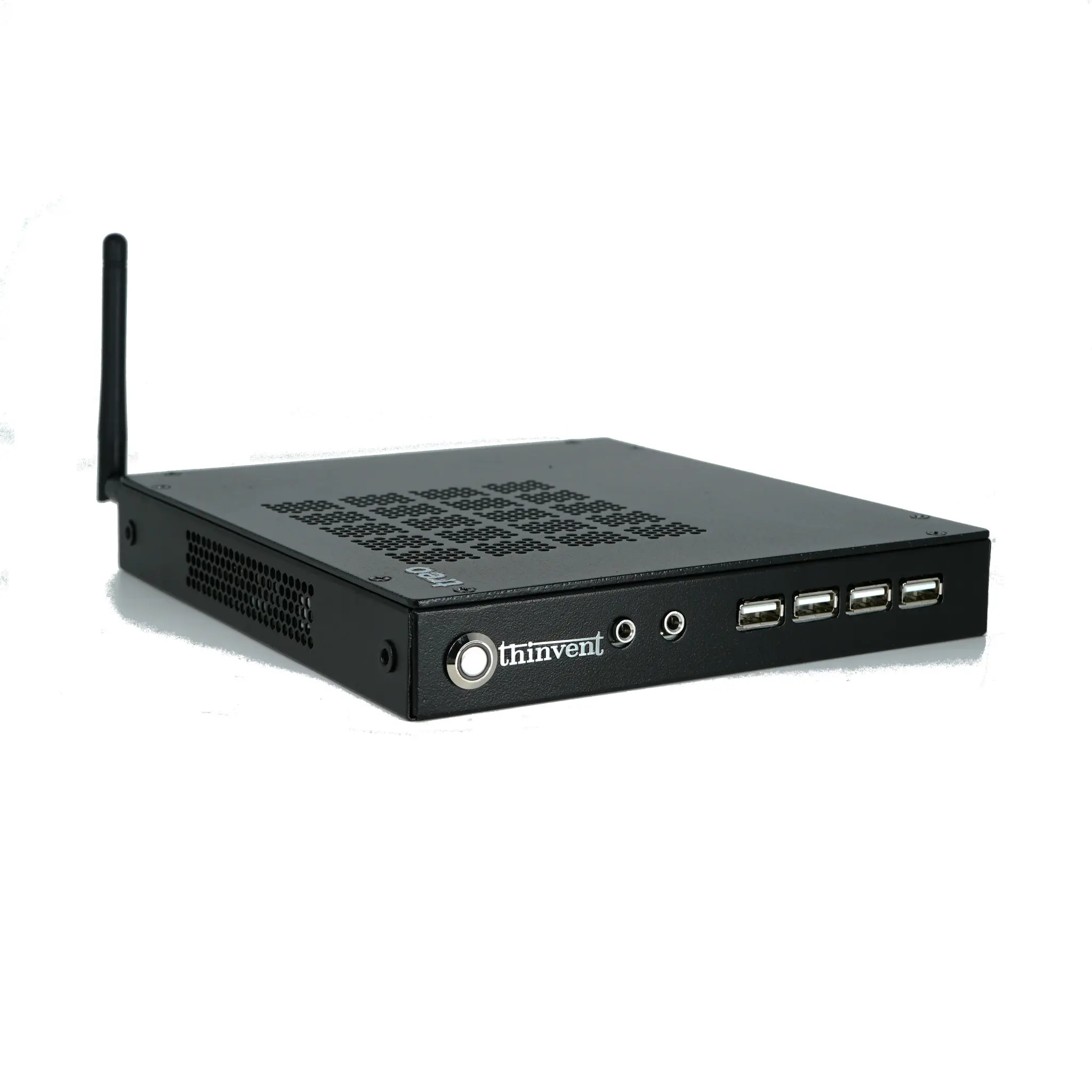
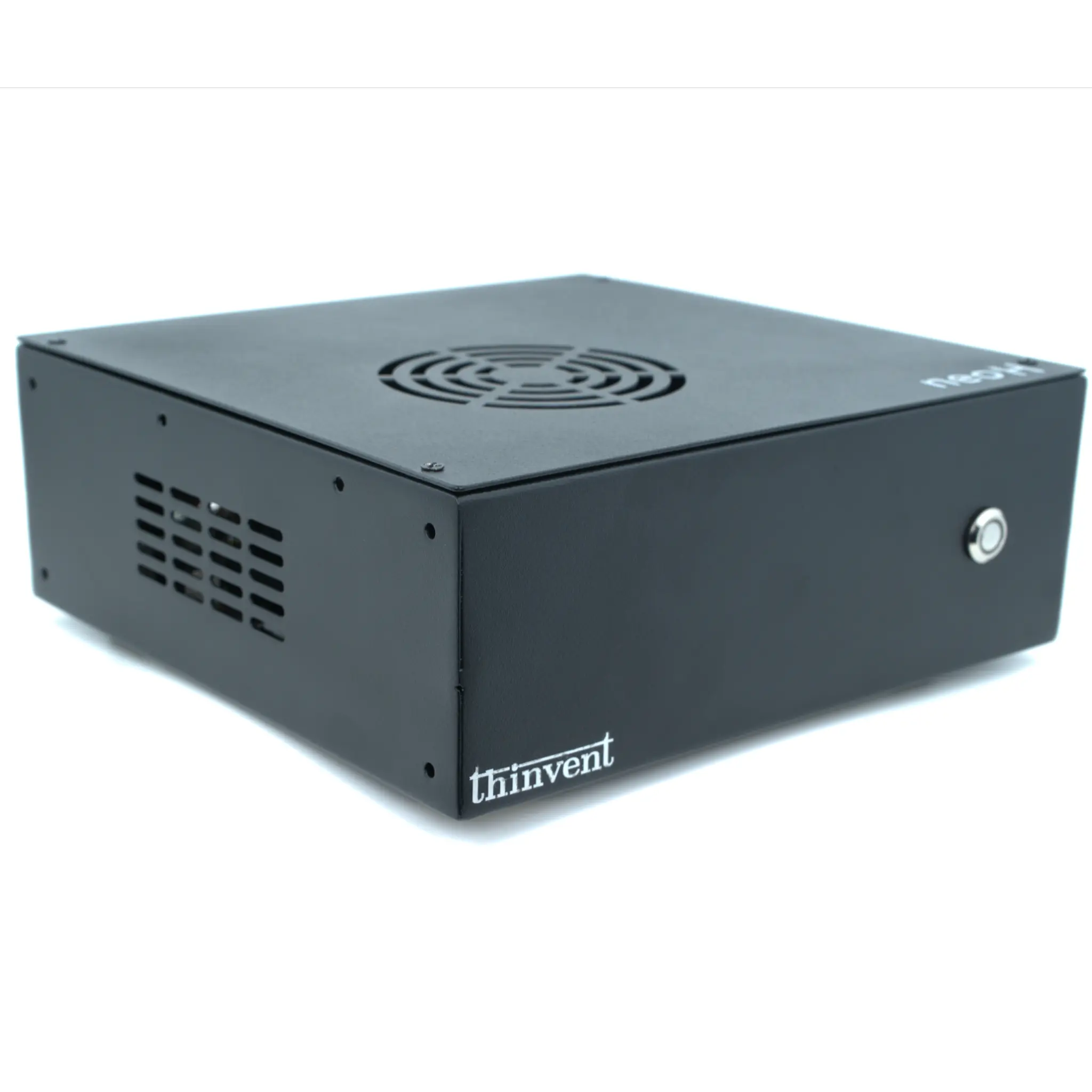
If the unit does not respond to the power button, disconnect the 12V 10A adapter from the wall socket, wait 30 seconds for the capacitors to discharge, and reconnect. This is the safest hardware reset and is recommended before opening the chassis. Never open an industrial PC while it is powered, and never reset by unplugging the DC jack repeatedly, as this can stress the power connector over time.
Step 3: Resetting the Operating System
If "reset" means restoring the software to factory condition, the method depends on the operating system pre-installed on your unit:
| Operating System | Reset Method | Data Preserved? |
|---|---|---|
| Windows 11 Pro / IoT Value | Settings > System > Recovery > Reset this PC | Optional (Keep files or Remove all) |
| Ubuntu Linux 24.04 LTS | Reinstall from USB or restore from image | No, back up first |
| Thinux™ Embedded Linux | Restore from the recovery image provided | No, back up first |
| DOS / FreeDOS | Re-image the SSD from a prepared bootable drive | No, back up first |
For Windows 11 Pro, choose "Remove everything" only if the machine is being redeployed to a new user or role. For embedded Linux deployments, Thinvent supplies recovery images so that a kiosk or digital signage unit can be restored to a known-good state in minutes.
Step 4: Resetting the BIOS or CMOS
If the unit fails to boot or the clock keeps losing time, the CMOS settings may need clearing. Power down, disconnect the adapter, open the chassis, locate the CMOS jumper or coin cell, and follow the board documentation to clear it. After clearing, the BIOS returns to default settings, including boot order and power-on behaviour. This is common when an industrial PC is moved between sites with different boot requirements.
Best Practices Before You Reset
Always back up configuration files, licence keys, and application data before any OS-level reset. For unattended installations, note the network settings (static IP, gateway) so the unit can be brought back online quickly. If the machine is in a cabinet or DIN-rail enclosure, label the power and network cables before disconnecting them, so reconnection is error-free.
Thinvent Products Built For Easy Recovery
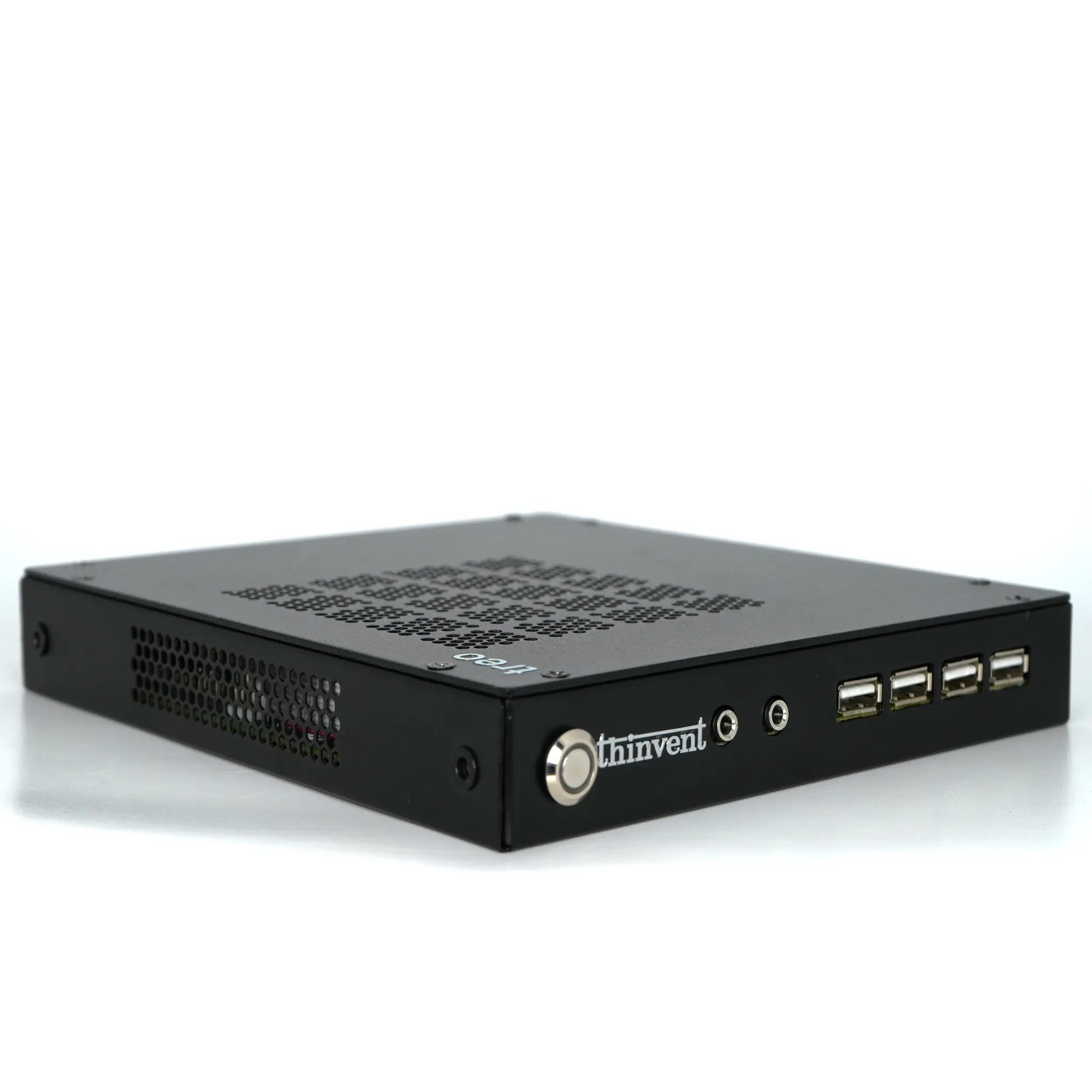
Thinvent industrial PCs, mini PCs, thin clients, and all-in-one PCs are engineered around the realities of reset and recovery. The IPC3 series, powered by Intel® Core™ i3-1215U processors with 6 cores up to 4.4 GHz, 16GB DDR4 RAM, and 1TB SSD, ships with Windows 11 Pro, Windows 11 IoT Value, DOS, or Thinux™ Embedded Linux, so you can choose the recovery workflow that matches your deployment. Options such as quad DB9 serial ports and fanless, wide-temperature operation make these systems suitable for factory floors, kiosks, and branch offices where a quick, reliable reset matters. For fleet deployments, Thinvent thin clients and all-in-one PCs can be re-imaged centrally, reducing downtime to a single reboot.