What "SSL Certificate Authority is Unknown" Means
When a thin client reports "SSL Certificate Authority is Unknown", it means the device cannot verify the identity of the server it is trying to reach — typically a VDI connection broker such as Citrix StoreFront, VMware Horizon, or a Remote Desktop Gateway. The server presents a TLS certificate, but the thin client's local certificate store does not contain the Root Certificate Authority (CA) certificate that signed it, and often not the Intermediate CA certificate either. Without a trusted chain, the client refuses the connection and the session never starts.
This is not a hardware fault. It is almost always a trust-store problem: the certificate chain on the server changed (for example, after a certificate renewal or a switch to a new public CA), while the thin client still holds only the old trust anchors. Dell's own ThinOS documentation and community threads describe exactly this pattern — thin clients failing to log in with "SSL UNKNOWN CERTIFICATE AUTHORITY" immediately after a certificate update on the RDS or broker environment.
Why the Chain Breaks
TLS trust works as a chain: the server certificate is signed by an Intermediate CA, which in turn is signed by a Root CA. A client must have the Root CA in its trusted store, and it must be able to build the path through the Intermediate. Common causes of failure include:
-
The Root CA certificate was never imported into the thin client's certificate store.
-
The Intermediate CA certificate is missing, so the chain cannot be completed.
-
The server certificate was reissued by a different CA than the one previously trusted.
-
The client's firmware or OS image has an outdated CA bundle.
-
The server hostname does not match the certificate's Common Name or Subject Alternative Name, which some clients treat as a related trust error.
How to Resolve It
The fix is to get the correct Root and Intermediate certificates onto the device. A widely used approach is to export the full chain from a browser, then deploy it through the management platform or a configuration file.
| Step | Action | Notes |
|---|---|---|
| 1 | Export Root and Intermediate CA certificates from a browser | Open the broker URL, inspect the certificate chain, export each CA as Base64/PEM or DER |
| 2 | Upload certificates to the management console | e.g., Wyse Management Suite file repository, or a local file server path |
| 3 | Assign certificates to the device policy | Push to the thin client profile so devices import them on next boot |
| 4 | Verify the chain | Reconnect to the broker; the trust error should clear |
On ThinOS, administrators have also used the AddCertificate=certname.cer directive in the wnos.ini file, placing the certificate in a /wnos/cacerts directory on an FTP or file server so the terminal pulls and imports it automatically. In ThinOS 9.x, the TLS Check CN option under Privacy & Security in the Admin Policy Tool or Wyse Management Suite policy settings controls whether the client validates the server certificate's Common Name during full-security SSL connections — useful when diagnosing name-mismatch versus missing-CA errors.
Preventing Recurrence
Certificate expiry and renewal are recurring events, so treat CA trust as an operational process rather than a one-time fix. Maintain an inventory of the CAs used by every broker and gateway, schedule certificate renewals well before expiry, and re-deploy updated Root and Intermediate certificates to all thin clients in the same change window. Where possible, use a management suite that can push certificate updates fleet-wide, and keep device firmware current so the built-in CA bundle stays reasonably fresh. For environments where IT wants full control over the trust store, a thin client platform that runs a standard, updatable operating system makes certificate management far more predictable.
Thinvent Products for Certificate-Managed VDI and Industrial Deployments
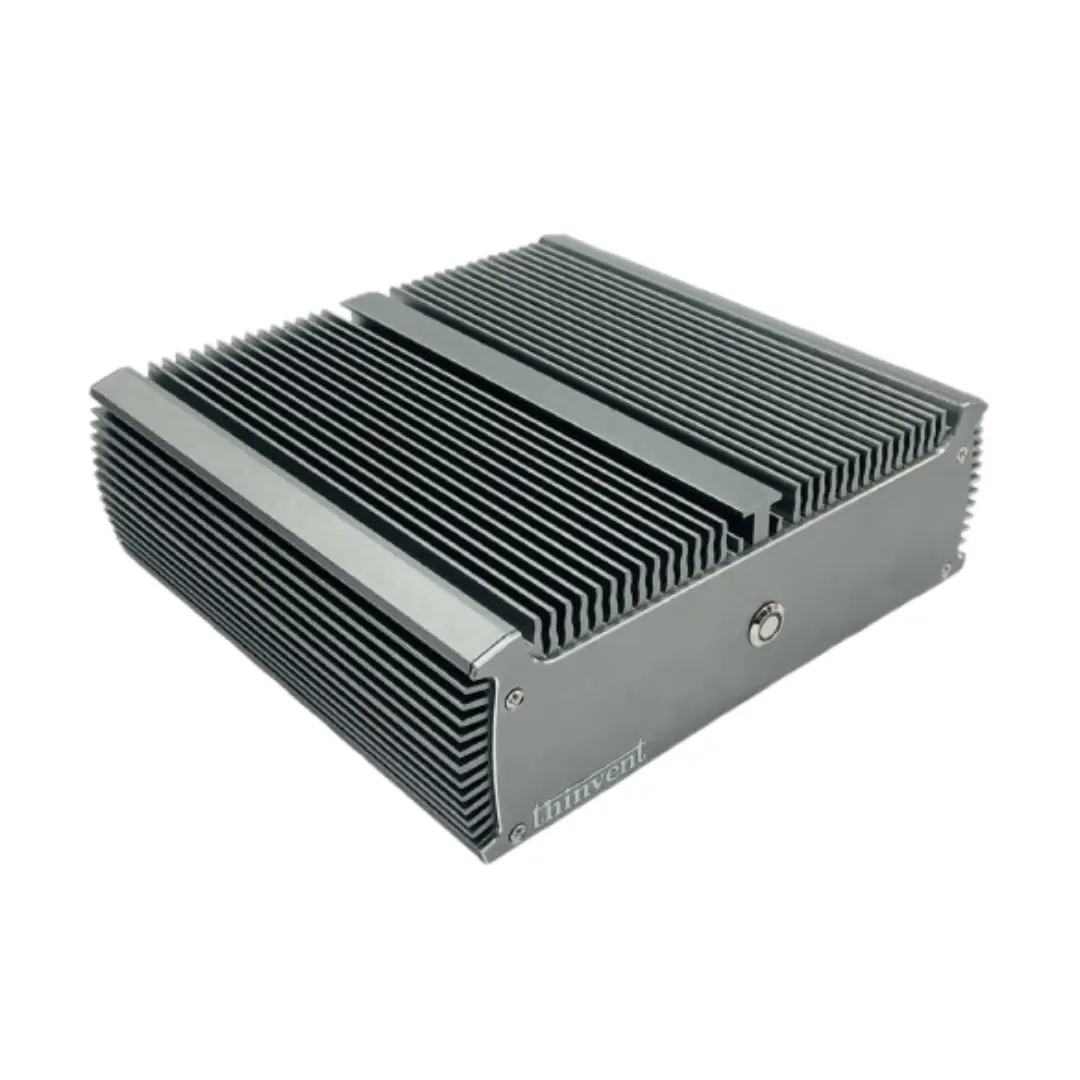
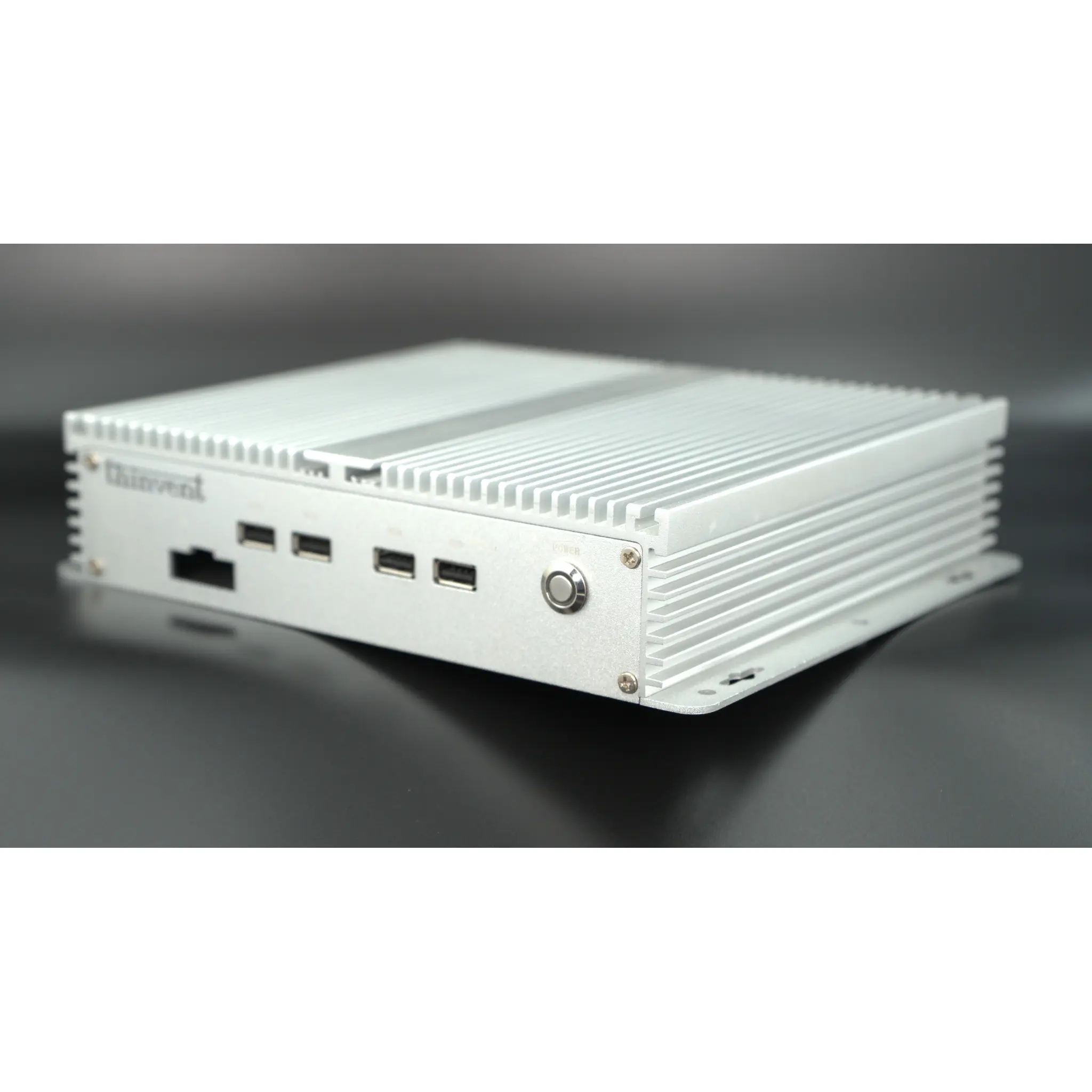
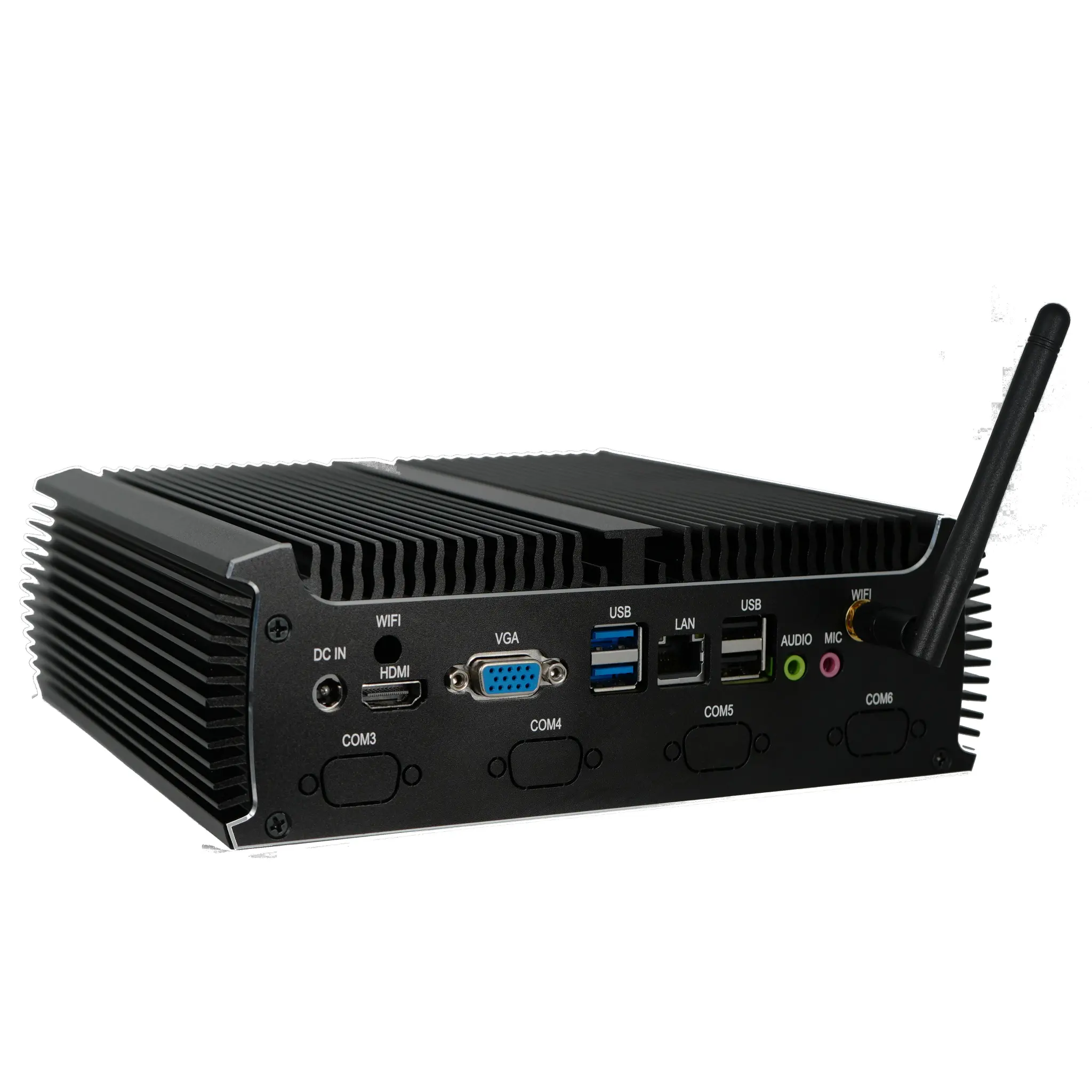
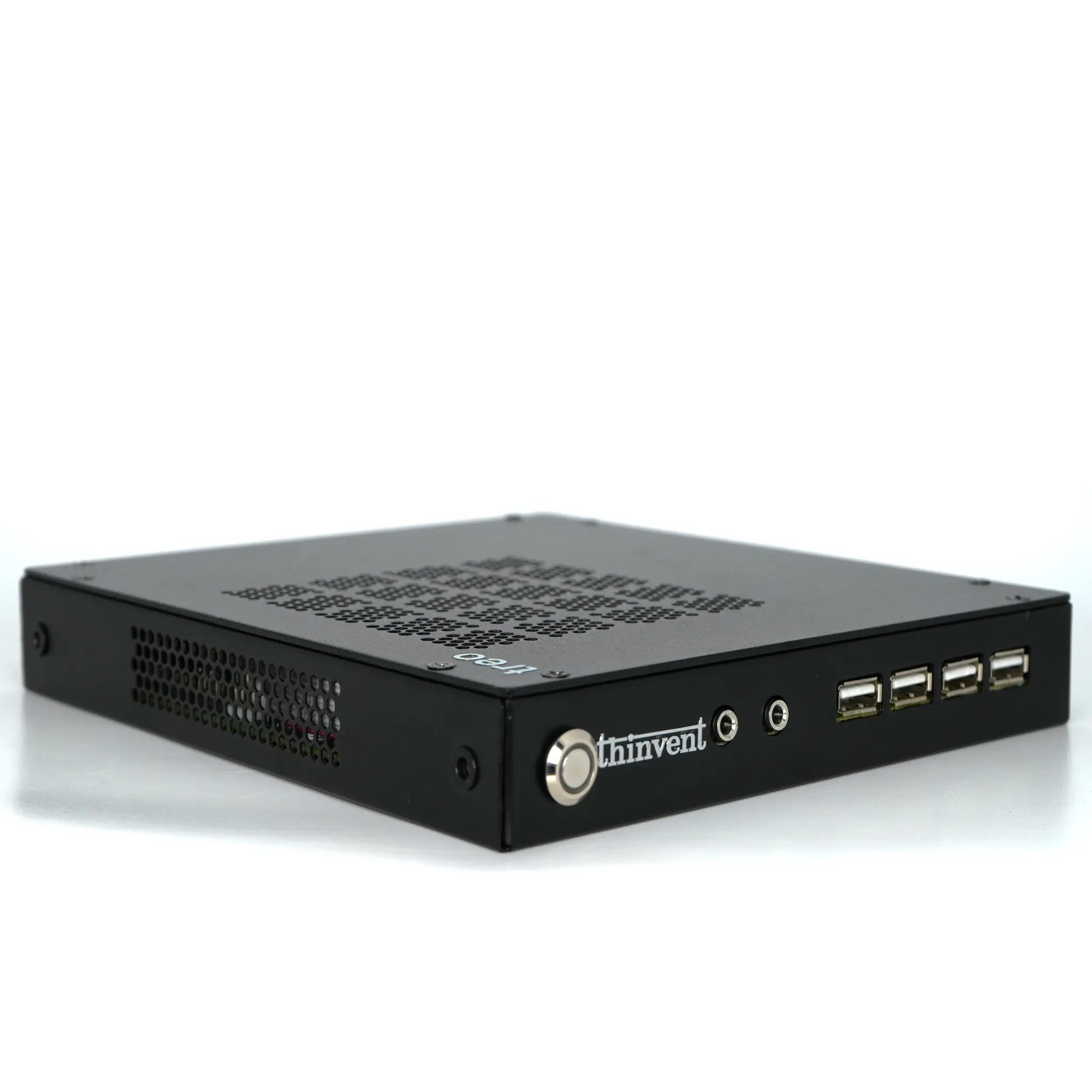
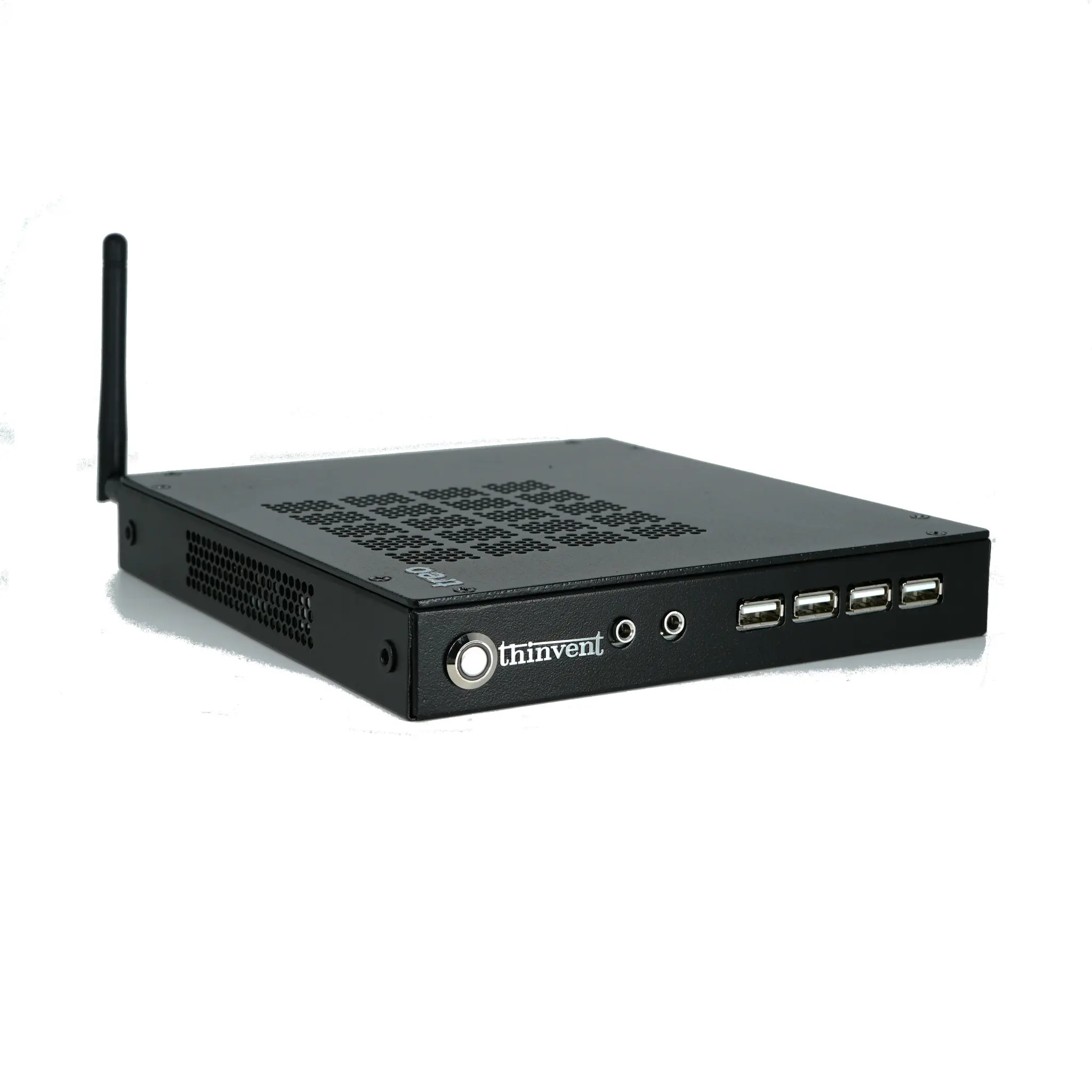
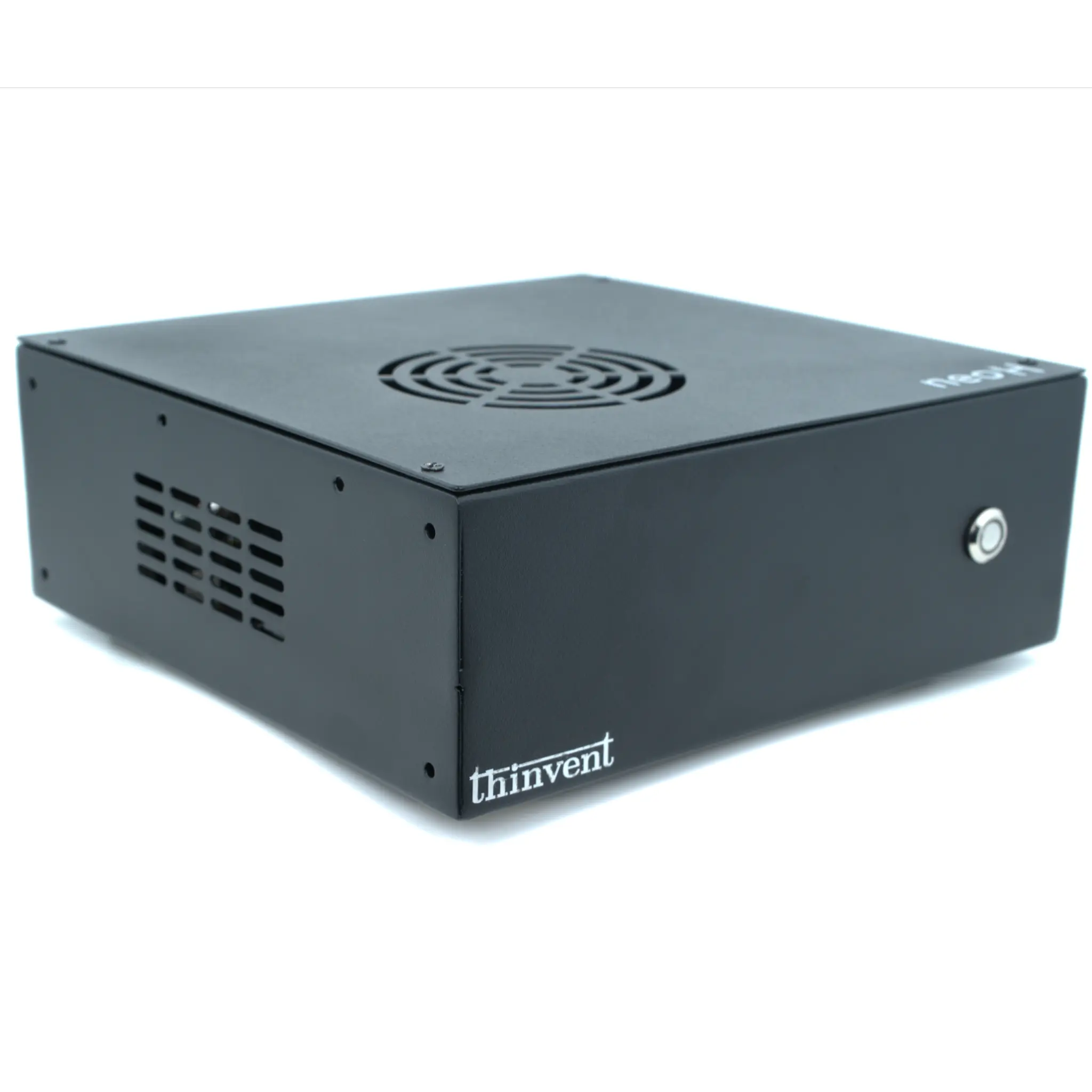
Thinvent's range of thin clients, mini PCs, industrial computers, and all-in-one PCs is built for exactly these managed environments. Thinvent devices running Ubuntu Linux 24.04 LTS, Windows 11 Pro, or Windows 11 IoT let administrators manage the certificate trust store with the same standard tooling they already use on servers and desktops — no proprietary certificate workflow required. The fanless IPC3 industrial PC, powered by Intel® Core™ i3-1215U (6 cores, up to 4.4 GHz) with up to 16GB DDR4 RAM and 1TB SSD, provides the reliability and connectivity (dual Ethernet, multiple HDMI, USB 3.2 Gen 2 and USB-C options) needed for VDI access, kiosk, and control-room roles where stable TLS connectivity to brokers and gateways is business-critical.