What Does "Display" Mean for an Industrial Computer?
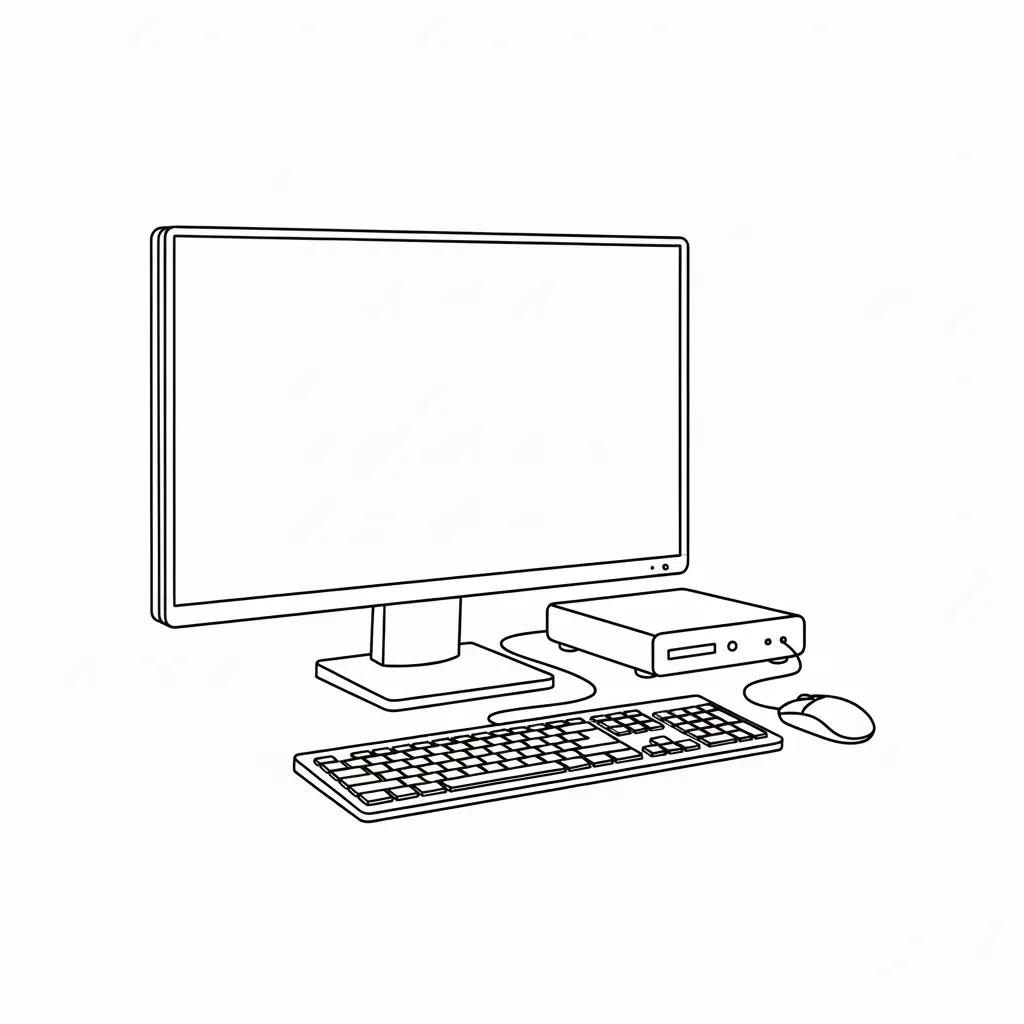
Display (डिस्प्ले) refers to how a computer outputs video to a monitor or screen — the graphics engine inside the machine, the physical video ports on the chassis, and the monitor that shows the operator interface. In industrial and commercial deployments, display support matters just as much as processor speed, because the screen is where operators read process data, run HMI (Human-Machine Interface) software, and control machinery. Choosing the right display configuration starts with three questions: how many screens do you need, at what resolution, and does the monitor mount into a panel or stand on a desk?
Graphics, Ports and Resolution
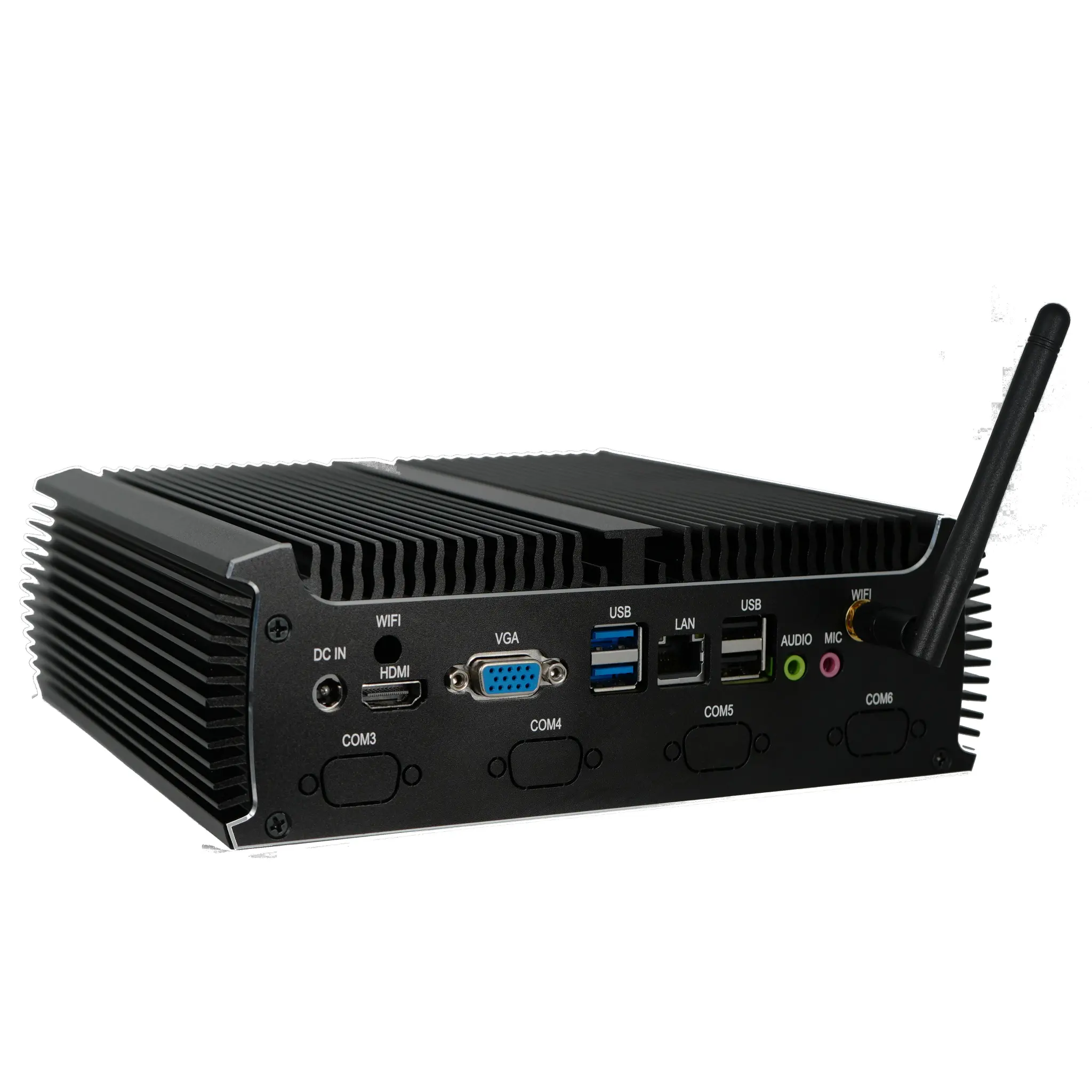
Most modern industrial computers and mini PCs use integrated graphics built into Intel or ARM processors. Intel UHD Graphics on 12th-generation Core processors such as the i3-1215U supports up to four independent displays, with HDMI, DisplayPort and USB-C (DisplayPort Alt Mode) outputs carrying the signal. HDMI 2.0 handles 4K at 60 Hz, while older HDMI 1.4 tops out at 4K 30 Hz — relevant when you drive large operator panels or video walls. Entry-level platforms such as the Intel N100 and J4125 typically support two displays, which is ample for a POS terminal or a single-machine HMI. Always match cable, port and monitor capability: a 4K panel connected through a 1080p-only port will downscale.
| Display Setup | Typical Ports | Best For |
|---|---|---|
| Single display | 1 × HDMI | Kiosks, POS, basic HMI |
| Dual display | 2 × HDMI / HDMI + DisplayPort | Control rooms, dual-monitor workstations |
| Triple or quad display | HDMI + DisplayPort + USB-C | SCADA dashboards, video walls, monitoring stations |
| All-in-One (integrated screen) | Internal panel link, 21.5" or 23.8" | Space-constrained desks, shop-floor terminals |
Display Options Across Form Factors
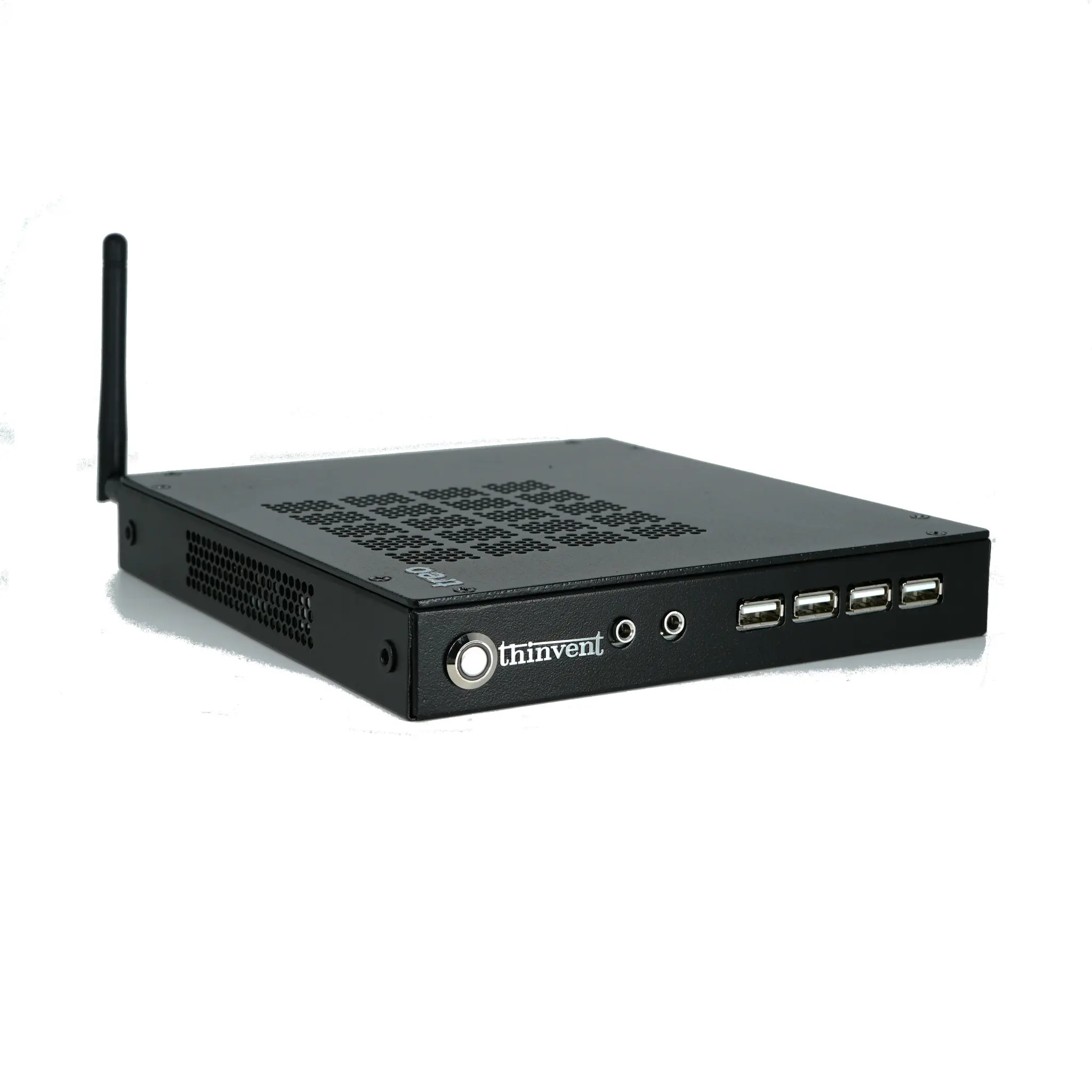
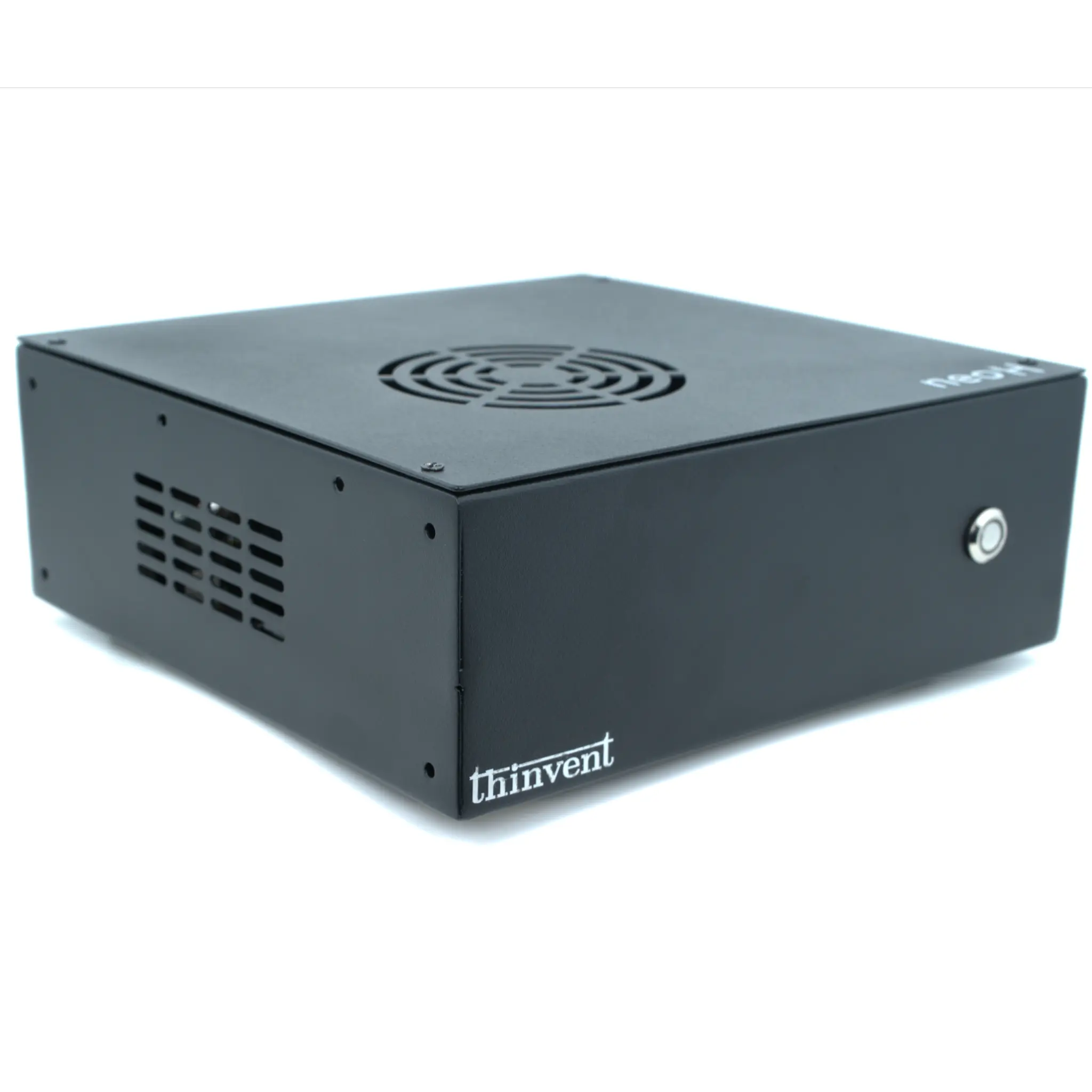
Not every deployment needs a separate monitor. All-in-One PCs integrate the screen, computer and often a touch panel into one unit, which removes cable clutter and simplifies mounting on a production line. Industrial PCs and mini PCs output to external monitors — useful when the screen must sit inside a control cabinet door or a NEMA enclosure. Thin clients typically drive a single monitor and rely on a server for compute, making them ideal for multi-station environments where dozens of identical displays are needed. In every case, check the ambient light, touch requirement (resistive vs. capacitive), and whether the panel must survive dust, vibration or washdown.
Practical Selection Tips
Decide the number of displays first, then the resolution, then the mounting method. For 24/7 industrial use, choose monitors rated for continuous duty and wide temperature ranges, and prefer industrial-grade connectors (locking HDMI or DisplayPort) so vibration does not loosen cables. If the application runs virtualised desktops, a thin client with dual-monitor support gives each operator a familiar layout without local processing power. Finally, confirm the operating system's multi-monitor behaviour — Windows 11 Pro handles extended desktops natively, while Linux deployments may need display manager configuration.
Thinvent Products with Display Support
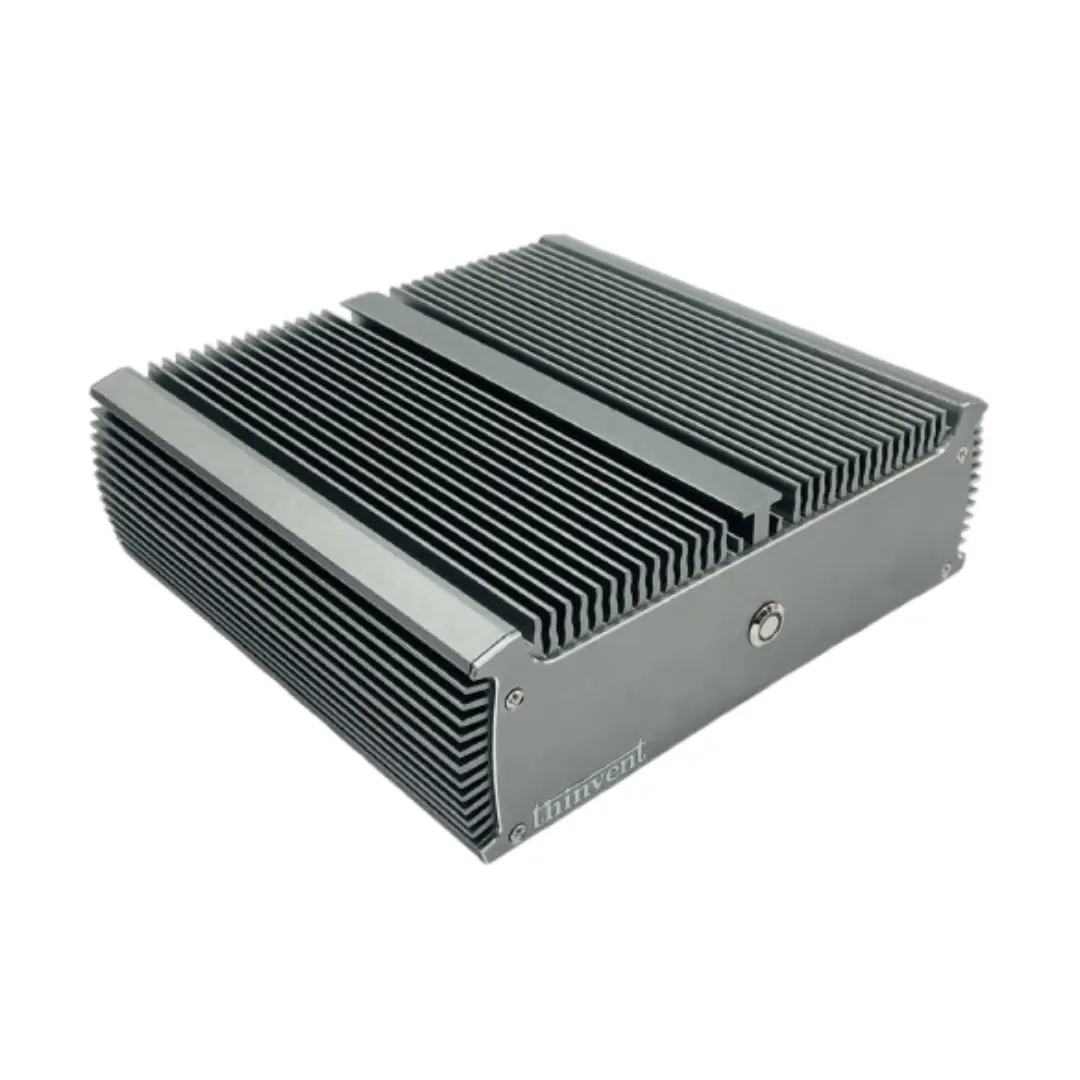
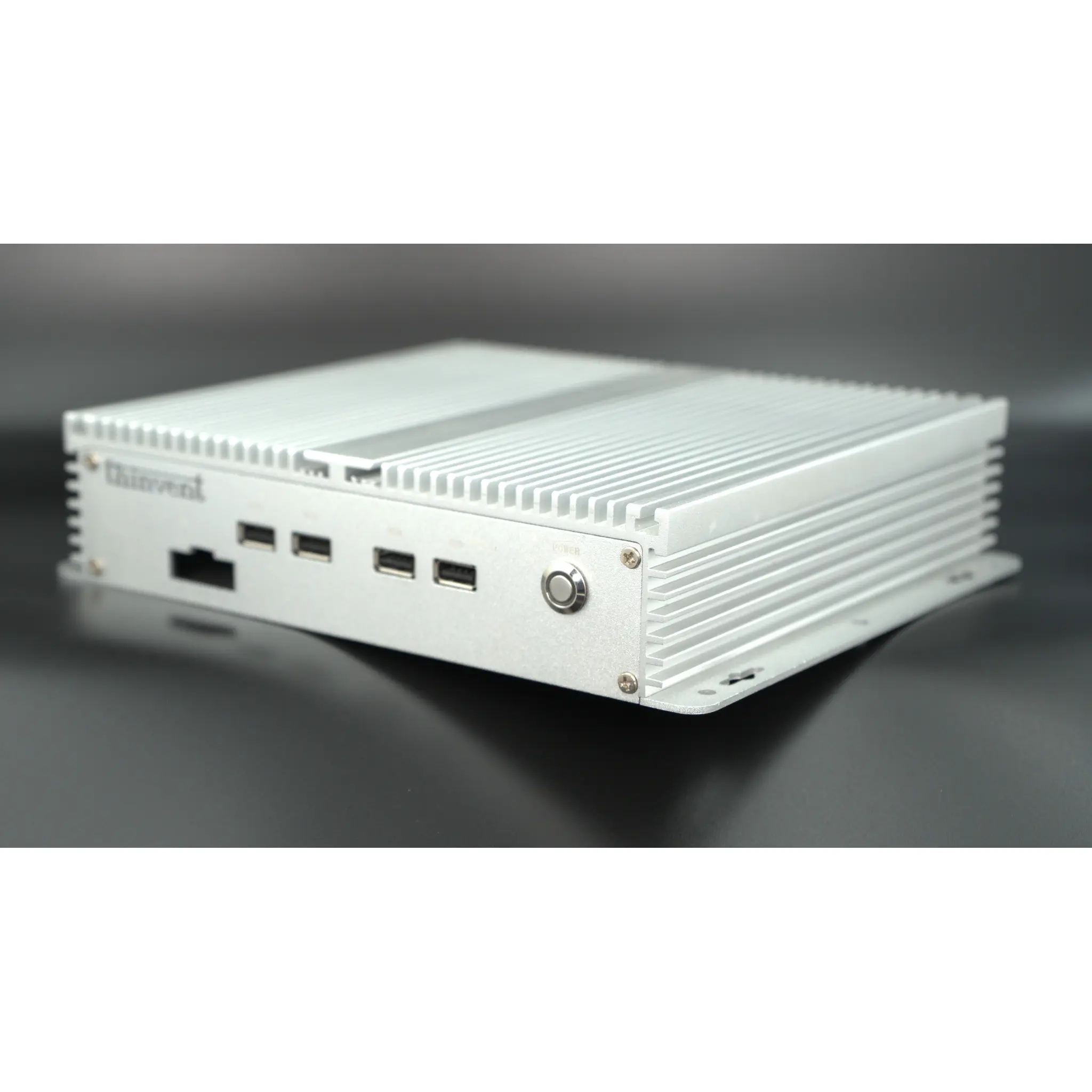
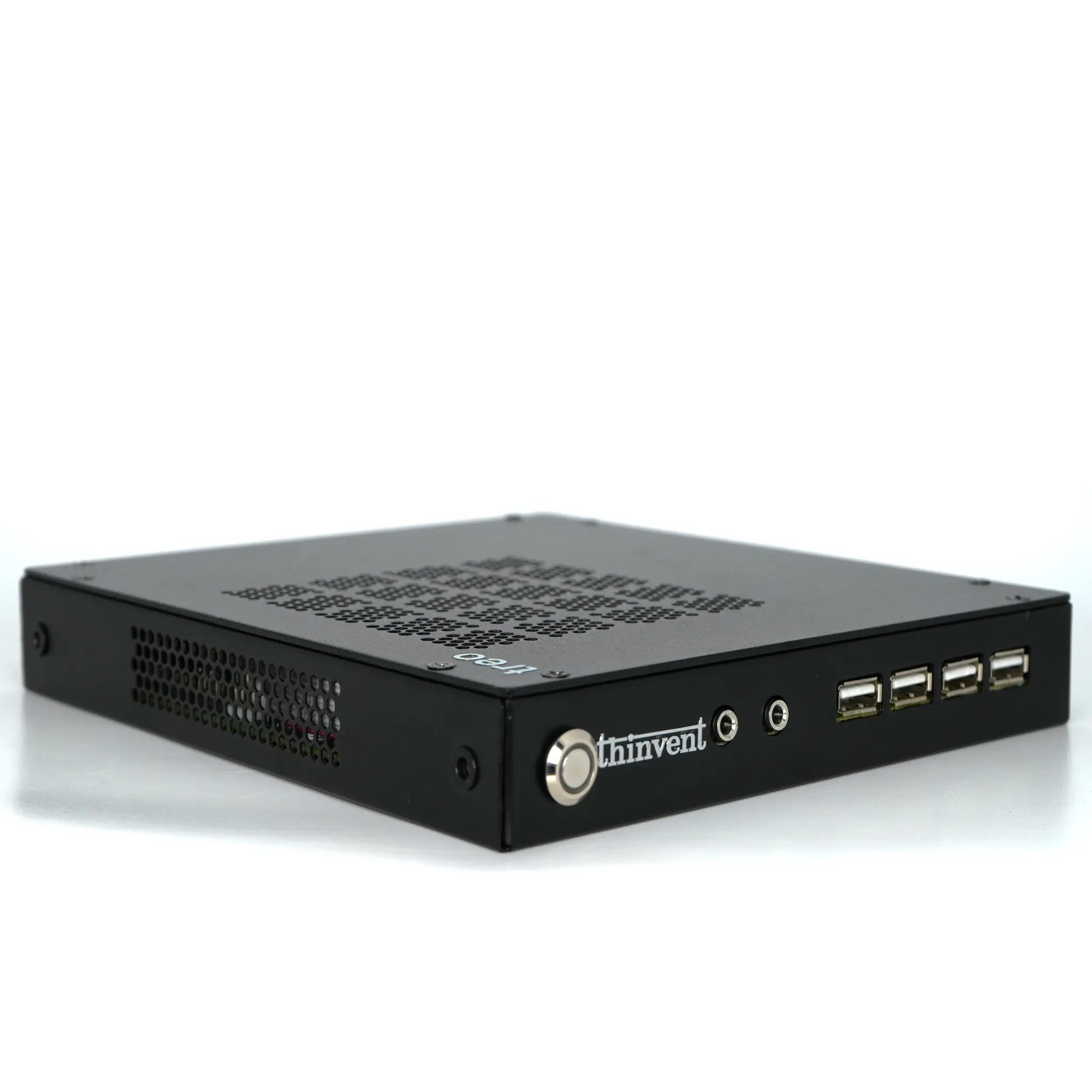
Thinvent builds display-ready hardware across its range. The IPC3 Industrial PC with Intel Core i3-1215U graphics drives multiple displays through HDMI and DisplayPort, suited to SCADA and control-room dashboards. Thinvent mini PCs on Intel N-series and Celeron platforms cover dual-display kiosk and POS roles, while all-in-one PCs with 21.5" and 23.8" screens integrate the display directly. Thinvent thin clients provide cost-effective single and dual-monitor endpoints for virtual desktop environments, and every unit can be configured with Windows 11 Pro, Ubuntu Linux or Thinux Embedded Linux to match your display software.